Charge Dash
← Charge Dash

CHARGE DASH / GUIDE

Get your devices together

Charge Dash is being prepared for its first App Store release. Here is how the apps fit together, ready for when you install them.

Open the companion apps

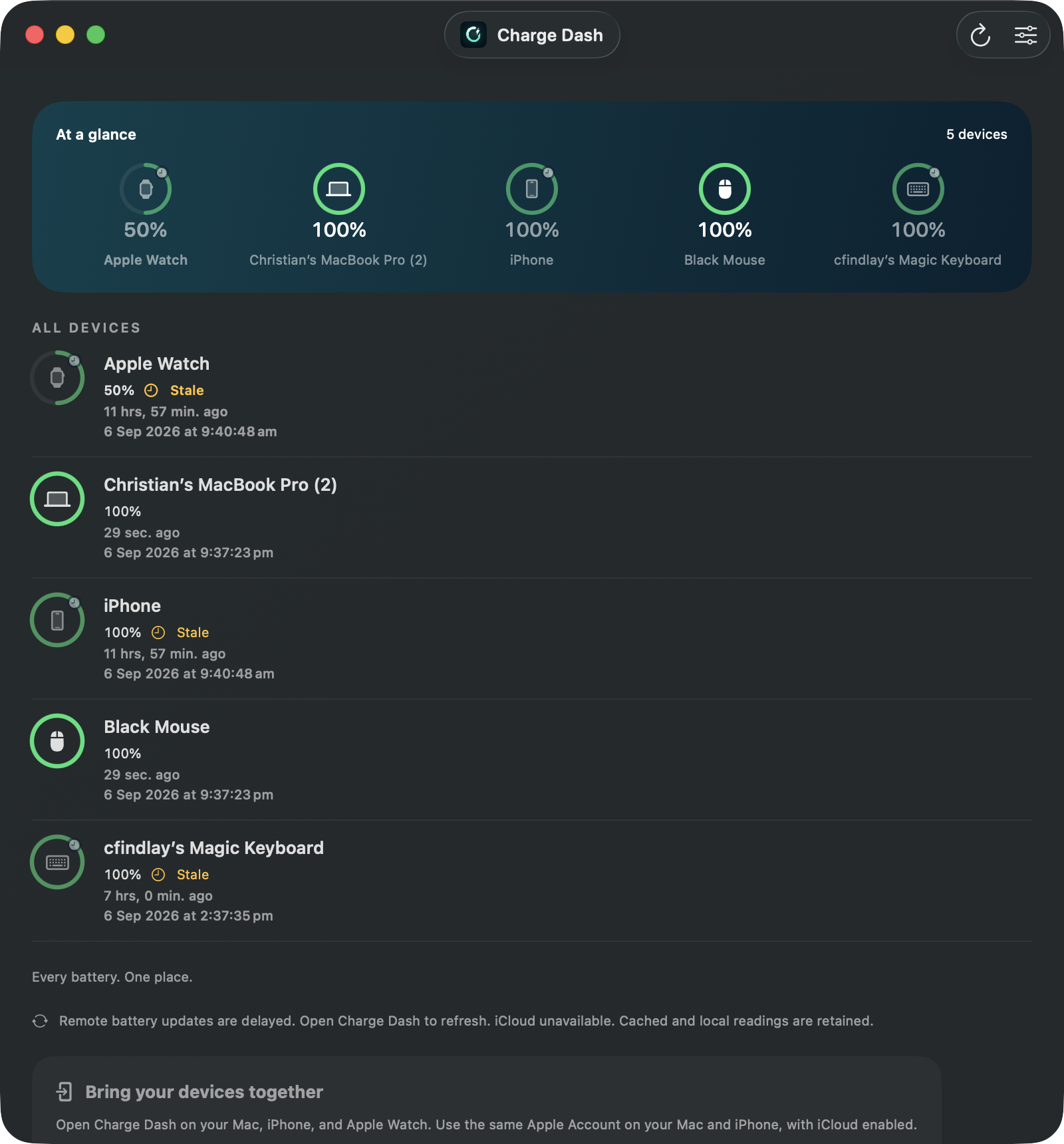
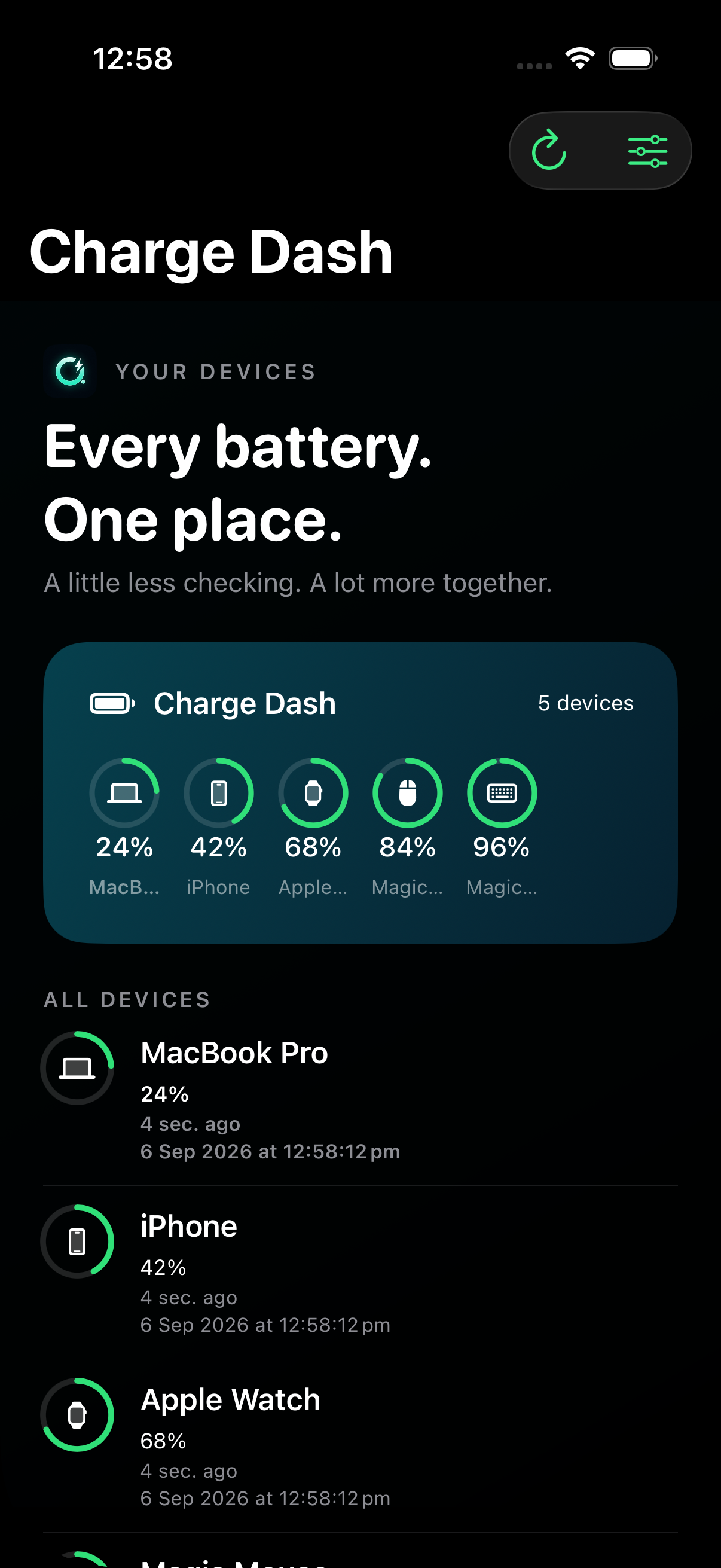
Open Charge Dash on your Mac, iPhone and Apple Watch. Use the same Apple Account on Mac and iPhone with iCloud enabled. Each app collects its own device’s battery reading.

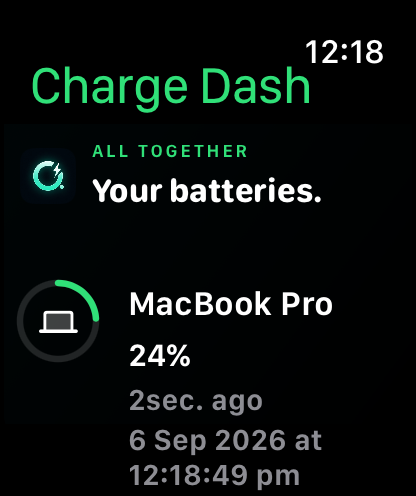
On Mac, use the dashboard, menu bar or desktop widget. On iPhone, use the app or Home Screen widget. Your paired iPhone brings the combined device list to your Watch.

Your Magic Mouse, Magic Keyboard and Magic Trackpad join through your Mac when macOS supplies their battery readings. Additional Macs and iPads can join by running the app.

Charge Dash supports macOS 14+, iOS 17+ and watchOS 10+. The Watch app needs a paired iPhone for the combined device list.

Put the dash in your Smart Stack

Open the Smart Stack on your Watch, enter its edit mode, and add Charge Dash from the widget gallery. The rectangular widget gives you a quick battery view. Tap it to open the full dashboard with every device Charge Dash can read.

You can also choose a Charge Dash complication on a compatible watch face. The circular complication shows a selected device; the rectangular version shows the overview where supported.

Make the list yours

Open Manage devices in the dashboard to rename or hide a device. Display preferences sync with your device list. Devices that need power appear first; confirmed charging devices follow them.

A heads-up when power runs low

In the Watch app, scroll to Enable alerts. Charge Dash asks for notification permission when you turn this on. You can turn alerts off again in the app.

Alerts can identify a device that needs charging. With enough recent readings, an alert may include an estimated empty time. Estimates depend on recent usage, and Apple controls notification delivery.

Understand what you see

Opening the dashboard requests available updates. Background collection, delivery and widget refreshes depend on Apple’s operating systems; an update request does not guarantee a new reading.

Need a hand?

If a device has not appeared, open its companion app, check the Apple Account and iCloud settings on Mac and iPhone, and keep the Watch paired with its iPhone. A visible sync status explains when iCloud is unavailable.

Contact Nimblesite for help. Read how Charge Dash handles your data.